
Manual-Clubs.
Here you have your Golf Club data available to see the Average distance, Minimum, Maximum, Dispersion with accuracy rating, Likelihood % and Your Ball position Ratio.
Here you also add a new distance by using GPS or enter the distance manually (When you are on the driving range, golf simulator or want to round it down to the number you want). Tap on the row with the club you like to add a new measurement and a new screen will show up for this.
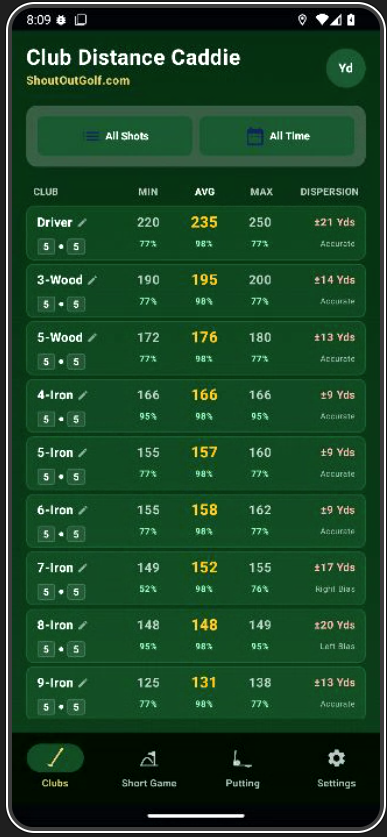
 Select Yards or Meters.
 Select your date range for the club data in use.
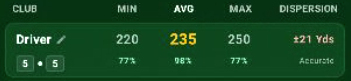 Club: The name of your golf club. Edit the name by tapping on the pencil icon.
MIN: Minimum distance of the golf club ball distance
AVG: Average distance of the golf club ball distance
MAX: Maximum distance of the golf club ball distance
DISPERSION: Here you see how much offline your ball flight direction (Left/Right) can go together with how accurate this dispersion number is. The more data you have logged the more accurate it become. When you enter you distances you can select Left, Center and Right to improve this info. The number +/- tells you how much left and right the ball can go when your strike is not centred on the club.
PGA Pros use this concept all the time, now you can too. That is why they are not always using their driver from the T-Box when the fairway is not so wide. Less shouting ‘Fore’ into the gallery.
Likelihood: This is the % numbers you see below: MIN, AVG and MAX. It informs you the likelihood your are going to hit the distance. It uses a Likelihood Gauss formulae of distribution of your logged shots to derive this % number.
You can use it to see how likely your are going to hit that distance. Very important if you have to hit over hazards or make the better choice of a good solid safe lay-up.
If your likelihood of MIN is higher or very high overall than the the likelihood of AVG. Well, l suggest a lay-up or club up.
Is your AVG and/or MAX likelihood higher or very high then go for it and impress your buddies. Knowing your combined likelihood is strong to make it happen.
But, don’t be fooled because when the MAX is very high be carefull what is behind the green when you do hit it. Is there another hazard or sloping down behind it waiting for your aggressive swing to collect the golf ball. Here knowing the MAX likelihood can also help you out saving a shot for you.
PGA Pros use this concept all the time, now you can too. That is why they club up sometimes to make sure they go over the hazard or club down to make a safe lay-up and not near the edge of the water rolling into it and shouting like Tyrrell Hatton, Shane Lowry or your golf buddies who don’t have Golf Club Caddie by SOG.
 Ball Position Ratio (BPR): Below the name of the golf club you see two small numbers with a white golf ball in between. These two numbers show the ball position ratio between your left foot and right foot to have the exact ball position placement for the golf club you are going to use. Tap the number and you can change it to your personal ratio. It is very important to know where to place the ball in relation to your feets and stand width to make the right club-ball contact. The Driver ball and feet width is different from the 9 Iron for instance. You have to find this for your own swing and ball flight you have. The smaller or wider your stance or the ball more in the back or more forward changes dramatically the delivery of the golf club into the ball and the ball flight.
PGA Pros use this concept all the time, now you can too. They know their default setup stance width and where the ball is in relation to their feets to make their basic shot shape. No topping shots, no fat shots, no shouting. Just good crisp club ball contact.
GPS Tracking and manually adding golf ball distances to your golf clubs.
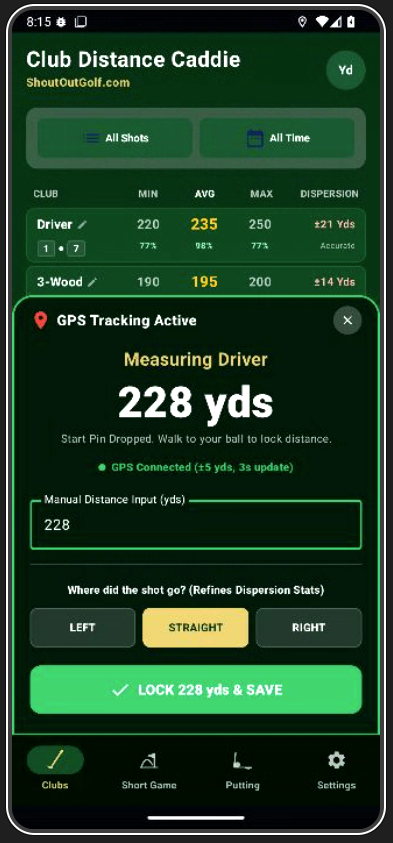 Tap on the row of the golf club you want to add a shot using GPS or adding it manually. You get the GPS tracking screen on top of the Club Distance Caddie tool. It will ask for permission to use your GPS if not already given. You should see the green text: ‘GPS connected (+/- 5 yds., 3 seconds update). The GPS tracker has started the distance you are going to travel towards your golf ball immediately. When you arrive at your ball you can [LOCK the distance & save] and assigned it to the golf club you previously had selected. You can add the dispersion to the [left], [straight] or [right] to improve your dispersion data, also. Now walking towards the ball on the driving range or when you are in the golf simulator will be problematic. You can also enter the distances manually without using the GPS and no need for walking to the golf ball. You can do your bag gapping on the driving range, at your golf simulator or in a net outside with a golf launch monitor to get your distances. Just enter the desired distance and press [LOCK the distance & save]. You can do that also when your using the GPS, you decide.